Declare a promise
This guide shows you how to declare a promise. A promise is a requirement with a stable ID, such as ORD-014. You need the editor role to write a draft and the owner role to approve it.
Set the prefix
Section titled “Set the prefix”Each project has one prefix for its requirement IDs. You set it one time. It cannot change, because issued IDs contain it.
- Open Promises in the left toolbar.
- In Prefix (2 to 6 letters), enter the letters, for example
ORD. - In First number, enter the number of the first promise. Use a number above
1when lower numbers are issued in another system. The line below the fields shows the first ID. - Select Set the prefix.
Write the draft
Section titled “Write the draft”- Select New.
- Enter a Title.
- Enter the Claim. Write one statement that a check can show to be true or false.
- Enter the Scope, the Preconditions, the Expected outcome and the Forbidden outcome.
- Below Forbidden events, select Add a forbidden event for each trace event that must not occur. Select the event, and select where it must not occur. A generated scenario check asserts that the event occurs zero times. The text of the forbidden outcome alone is not checked.
- In What counts as evidence, say what result you accept.
- If the source must declare a pattern, select The source of a repository must declare a pattern. below Required source pattern. Select the Repository, the Pattern and, for one service, the Service.
- Below Linked to, select the scenarios, operations, channels, subscriptions, messages and elements that the promise is about.
- Select Create draft.
You select each part of the model by its name. If the server refuses a value, the message shows below the field of that value.
Vellum gives the draft the next requirement ID. The ID never changes and is never used again.
A draft is not a requirement. The SDD and the brief list it as not approved.
Add obligations
Section titled “Add obligations”An obligation is one check that gives evidence for the promise. A promise with no obligation has no evidence.
- Open the draft.
- Select Generate from the links. Vellum calls no AI for this.
- Select the pencil button of an obligation to change it. Select Add an obligation to write one, and select its Kind.
- For a scenario check, select the Scenario. Below Faults, select Add a fault and select the target, the kind and the number of first attempts that fail. The list of targets has the parts that the steps of the scenario name. Below Assertions, add or change each assertion.
- For a source pattern check, select the Repository, the Pattern and the Service.
- For a test plan, name the evidence source: the repository, the workflow and, if needed, the job. A test plan with no evidence source can get no result.
- Select Save the obligation or Add the obligation.
Generate from the links adds these obligations.
| Link | Obligation |
|---|---|
| A scenario that has an assertion | A scenario check that plays the scenario. |
| A subscription | A failure test plan for redelivery, duplicate delivery and the dead-letter path. |
| An operation | A contract test plan. |
| A required source pattern | A source pattern check. |
Promises and evidence lists the kinds of obligation.
Approve
Section titled “Approve”- Read the draft.
- Read the box above the buttons. When it says Approval is blocked:, it gives each cause: a change that is not saved, an empty field that an approved promise needs, or a link to a part that no longer exists.
- Select Approve revision 1.
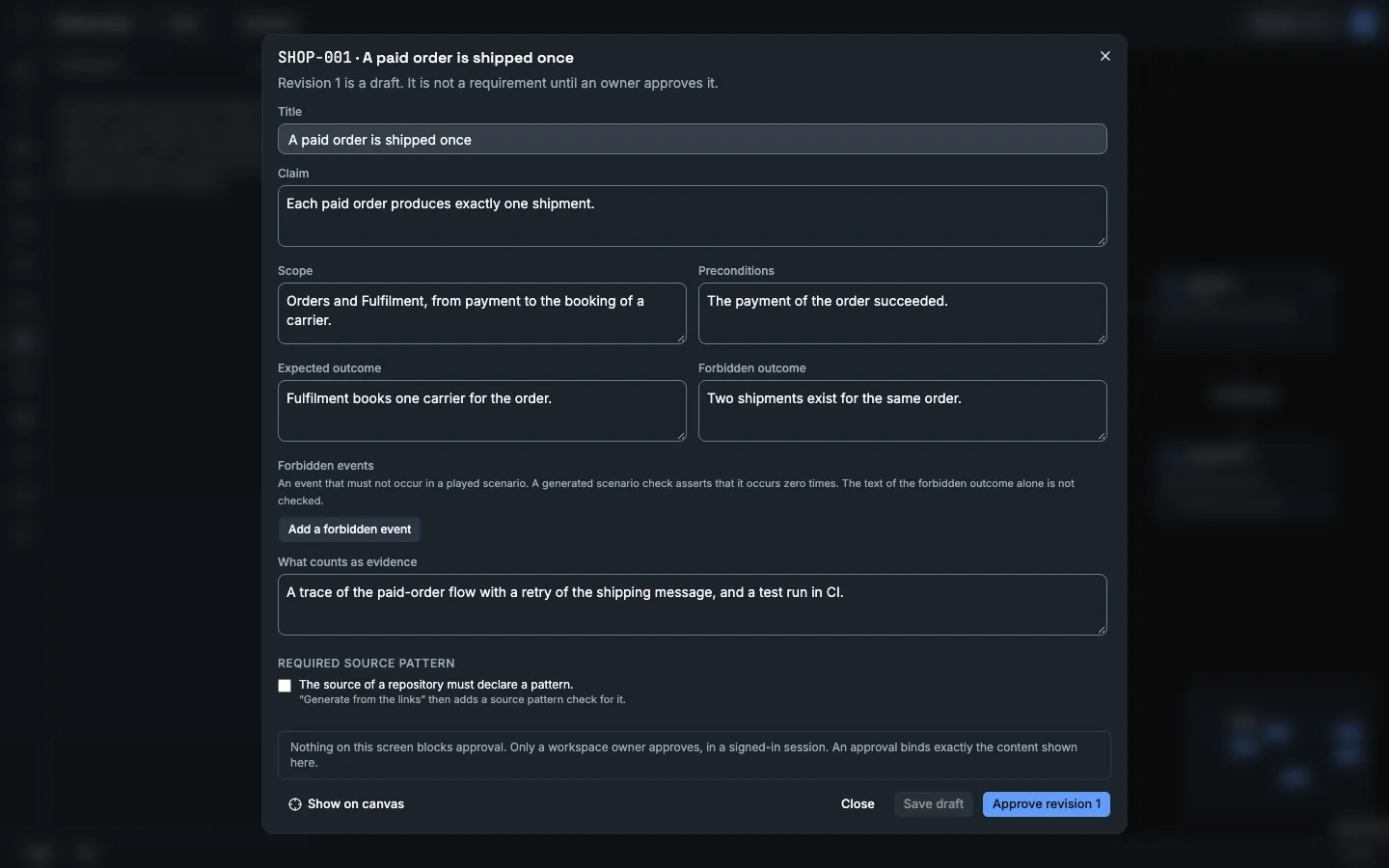
Only a workspace owner approves, and only in the app. An agent token cannot approve, whatever scopes it has.
The approval binds the text that you read. If the draft changed after you opened it, Vellum refuses the approval and shows the draft as it is now.
After approval, the text and the obligations of the revision do not change.
Check the promise
Section titled “Check the promise”- Open the promise.
- Select Run on a scenario check.
- On a source pattern check, select the scan in the list and select Run against this scan.
- For a test plan, run the test in your CI. Then enter the URL of the workflow run and select Record run.
Each obligation shows one label: Passed, Failed, Not run, Unsupported or Stale. A stale result was made on inputs that changed. It does not count as passed. Below the label you read what the check read: the scope, the model version, the commit, the faults and the limits.
The promise also shows a list of Evidence gaps. Vellum never shows a promise as verified. Read the counts and the gaps.
Read the run history
Section titled “Read the run history”Each obligation has a History expander. Open it to see every run of the obligation, the newest first, 20 at a time. Select Show more for older runs.
Each run shows:
- the result and the promise revision, and draft when the revision was a draft at the run;
- the model version and named revision, or the commit and the scan, that the check read;
- the environment and the time;
- who or what started it: a person by name, an agent token or a CI token by the token name. A CI token is a token with the
scan-pull-requestscope.
A failed run that follows a passed run has the mark Passed → Failed.
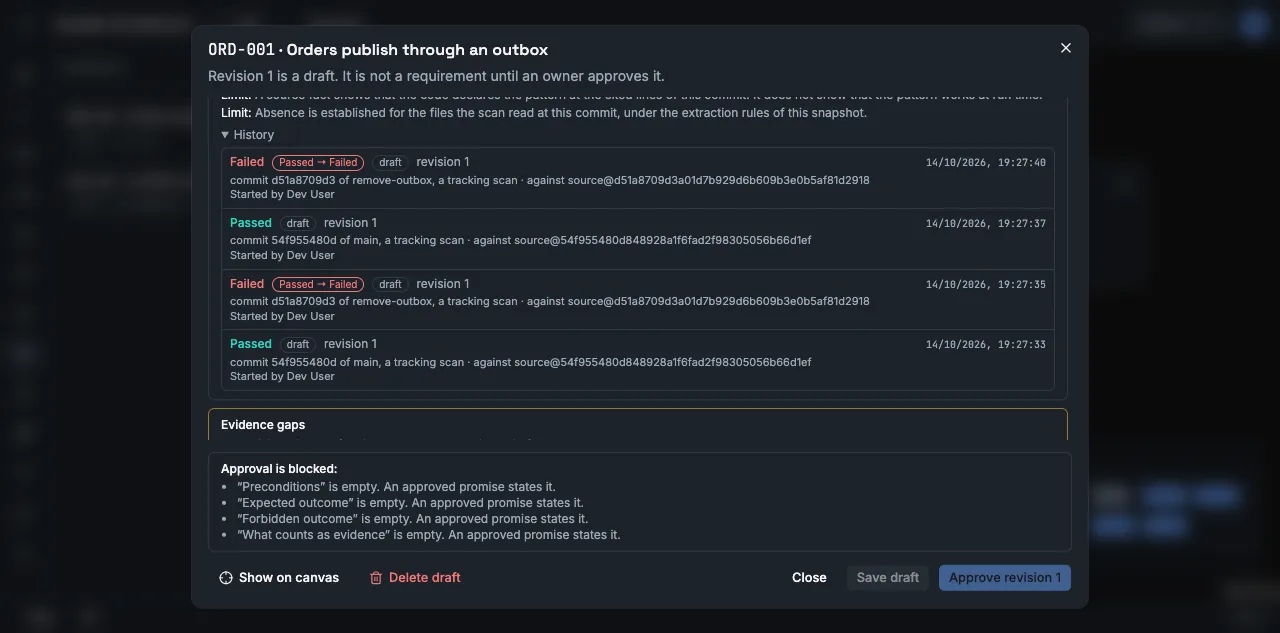
Runs are never changed. A deleted draft promise takes its runs with it.
To see the promise on the canvas, select Show on canvas. The canvas rings the elements that the promise links and the elements of its flows. Select Clear on the canvas to remove the rings.
Delete a draft
Section titled “Delete a draft”A promise that was never approved can be deleted. Open it and select Delete draft. Its requirement ID is not issued again.
An approved promise is not deleted. To end it, select Retire. Retirement is a revision that an owner approves.
Change an approved promise
Section titled “Change an approved promise”- Open the promise.
- Select Start a new revision.
- Edit the draft and approve it.
The earlier revision stays in the history. A result of the earlier revision does not count for the new one.
Let an agent propose
Section titled “Let an agent propose”An agent with the propose scope can write a draft. Its origin is agent-suggested. You approve it, or you do not. See Connect a coding agent.
An agent can also change a draft that a person wrote. The origin of the promise stays human. The draft then shows this notice: “An agent token changed this draft after the last change by a person.” The notice names the token and the time. The list of promises shows “draft changed by an agent”.
Read every field and every obligation of such a draft before you approve. An obligation that an agent wrote, or changed last, has the mark “by an agent” or “changed by an agent”.
An agent cannot delete a promise that a person wrote or changed. It cannot change or remove an obligation that a person wrote or changed.