Manage workspaces, members and projects
This guide shows you how to create a workspace and a project, how to give a person access and how to rename or delete. Each task has a control in the app. The curl examples use the session cookie of a signed-in person in the file vellum.cookies. Use the HTTP API shows how to sign in. An agent token cannot make these calls: these endpoints are not open to agent tokens and answer 403.
Know the roles
Section titled “Know the roles”A workspace holds projects, settings, secrets and members. A member has one role in the workspace. The role applies to each project of the workspace.
| Role | Can do |
|---|---|
Viewer |
Read the projects, the models, the documents, the scans, the review, the estimates and the comment threads. Preview the merge of a draft. |
Commenter |
All that a viewer can do. Start comment threads and reply, mention members, resolve own threads, raise a thread as an open question. A commenter cannot change the model, the scenarios, the documents or the drafts. See Comment on a design. |
Editor |
All that a commenter can do. Create and rename projects. Change the model, the scenarios, the documents, the drafts, the variants and the cost sheet. Start scans and decide proposals. Write the draft of a promise. Resolve any thread and raise a thread as a decision. |
Owner |
All that an editor can do. Invite and remove members. Rename and delete the workspace. Delete a project. Change the settings and the secrets. Create agent tokens. Test the AI provider and the GitHub connection. Change the price book. Approve a promise. Accept or reject a decision. Authorise a load-test target. Delete the comment of another person. |
A person who is not a member of the workspace gets 403 for each request on it. A member with a role that is too low gets 403 with the text Requires at least <role> role.
The person who creates a workspace is its first owner.
Create a workspace
Section titled “Create a workspace”- Open
http://localhost:8080and sign in. - Select + New Workspace. When the account has no workspace, the button reads Create Workspace.
- Enter a Workspace name and select Create.
The request is POST /api/workspaces with id (a new UUID) and name.
Create a project
Section titled “Create a project”- Below Workspaces, select the workspace.
- Select + New Project.
- In Create Project, enter a Project name and select Create.
The request is POST /api/workspaces/{workspaceId}/projects with id (a new UUID), name and description. You need the editor role.
Open the member list
Section titled “Open the member list”- Open
http://localhost:8080and sign in. - Below Workspaces, select the workspace.
- Select Settings.
- Select Members.
The list shows each member with the name, the email address, the role and the date since which the person is a member. Not recorded stands for a membership that is older than this date field.
Each member of the workspace can read the list. Only an owner sees the controls that change it.
Invite a person
Section titled “Invite a person”You need the owner role. A person becomes a member only when they accept an invitation. Vellum adds nobody directly.
Know these limits first.
- Vellum sends no email. Vellum gives you a link, and you send it to the person yourself, by a channel that you trust.
- Only the link accepts the invitation. Vellum shows the link once. Vellum stores only a hash of the secret in the link, so nobody can show the link again.
- The person needs an account on this instance with the email address that you invite. When registration is closed, a new person cannot create an account. See Let a new person register.
- An invitation expires after 14 days.
- One owner can make 10 invitations in one minute. A workspace can have 100 open invitations.
- Open the member list.
- Below Invite a person, enter the Email address.
- Select a Role: Viewer, Commenter, Editor or Owner.
- Select Invite.
- Vellum shows the link of the invitation. Select Copy, then send the link to the person.
- Select Done.
The link has the form http://localhost:8080/invitations/<invitation-id>#secret=<secret>. The secret is after #, so a browser does not send it to a server, and it is in no server log.
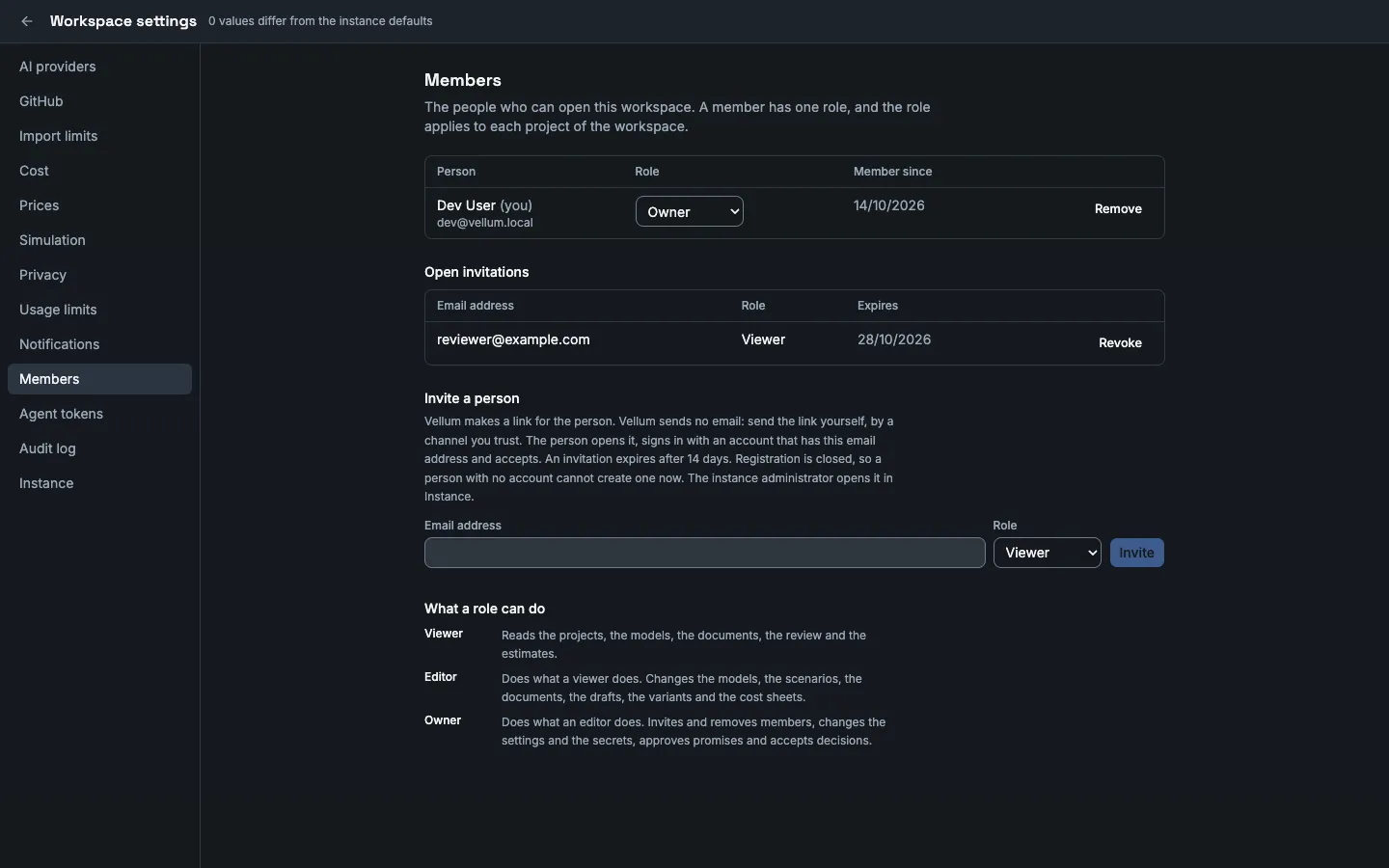
The invitation shows below Open invitations, with the address, the role and the expiry date. The answer is the same for an address with an account and an address without one. The owner does not learn from the invitation whether a person has an account.
When you invite an address that has an open invitation, Vellum renews that invitation: it takes the new role, a new expiry date and a new link. The old link stops working. Do this also when you lose the link.
If the request fails, the form shows No invitation was made. and the reason.
| Reason | Cause |
|---|---|
This person is already a member. |
A member has this address. Change the role in the list. |
An email address of at most 256 characters is required. |
The text is not an email address. |
The workspace has too many open invitations. |
The workspace has 100 open invitations. Revoke some first. |
Too many attempts. |
You made 10 invitations in the last minute. Wait and try again. |
Revoke an invitation
Section titled “Revoke an invitation”You need the owner role.
- Open the member list.
- Below Open invitations, in the row of the invitation, select Revoke.
The person cannot accept a revoked invitation. To invite the person again, make a new invitation.
Accept or decline an invitation
Section titled “Accept or decline an invitation”- Open the link that the owner sent you.
- If you are not signed in, sign in with the account that has the invited email address. Vellum then opens the invitation again.
- The page Invitation shows the workspace, the role, the owner who invited you and the expiry date. Select Accept or Decline.
When you accept, you become a member with the invited role, and the workspace shows below Workspaces. When you decline, the invitation closes.
Vellum needs two things to accept or decline: the secret of the link, and a signed-in account with the invited email address. Upper and lower case of the address do not matter. A person who registered an account with your address but has no link cannot accept or decline.
When the secret or the account is wrong, the page shows Vellum found no invitation for this link and this account. Vellum gives the same answer for a wrong secret, a wrong account and an unknown invitation. Check that you opened the whole link and that you signed in with the invited address. If the owner invited you again, only the newest link works.
On the workspace list, the box You have an invitation shows each open invitation for your address. The box has no Accept: open the link to accept or decline.
You cannot accept an invitation that is revoked, declined or expired. The page then shows The invitation is revoked., The invitation is declined. or The invitation is expired.. Ask an owner to invite you again.
Change a role
Section titled “Change a role”You need the owner role.
- Open the member list.
- In the row of the member, select the new role in the Role list.
Vellum saves the role at once. The new role applies to the next request of the person.
A workspace must have at least one owner. When you change the role of the only owner, Vellum refuses, and the row shows Cannot change the role of the last owner. Make another member an owner first.
Remove a member
Section titled “Remove a member”You need the owner role.
- Open the member list.
- In the row of the member, select Remove.
- Select Remove member.
The person loses access to each project of the workspace at once. The account stays.
When you remove the only owner, Vellum refuses, and the dialog shows Cannot remove the last owner. Add a second owner first. Vellum checks this also when two owners change roles or remove members at the same time.
When you remove yourself, you lose access to the workspace. An owner must invite you again.
Let a new person register
Section titled “Let a new person register”Only the instance administrator can do this.
- Open the workspace settings.
- Select Instance.
- Switch on Let people register themselves.
- Ask the person to open the sign-in screen, to select Register and to create the account.
- Switch off Let people register themselves.
- Invite the person. See Invite a person.
The sign-in screen shows Register only while registration is open. It shows a button for GitHub or Google only when the instance has that provider. See Configure settings.
Vellum has no function that lets an administrator create an account for another person.
Use the API for members
Section titled “Use the API for members”GET /api/workspaces/{workspaceId}/members gives the list. Each member can call it. The answer has yourRole and members. Each member has userId, email, displayName, role and createdAt.
To invite a person, send the email and the role. The role is Owner, Editor, Commenter or Viewer. You need the owner role.
curl -X POST "http://localhost:8080/api/workspaces/<workspace-id>/invitations" -b vellum.cookies -H "Content-Type: application/json" -d '{"email":"person@example.com","role":"Editor"}'The answer has id, workspaceId, email, role, status, createdAt, expiresAt, secret and path. The status is pending. secret is 256 random bits in base64url. path is the link in the app, /invitations/<id>#secret=<secret>: put the address of your instance in front of it. This answer is the only place where the secret appears. A renewal gives a new secret.
| Status | Text | Cause |
|---|---|---|
201 |
Vellum made the invitation. | |
200 |
An open invitation for this address exists. Vellum renewed it with the new role and a new expiry date. | |
400 |
An email address of at most 256 characters is required. |
The email is not an email address. |
400 |
Must be Owner, Editor, Commenter or Viewer |
The role is not one of the four. |
409 |
already_member |
A member has this address. |
409 |
too_many_invitations |
The workspace has 100 open invitations. |
429 |
rate_limited |
You made 10 invitations in the last minute. The Retry-After header gives the seconds to wait. |
GET /api/workspaces/{workspaceId}/invitations gives the open invitations. Only an owner can call it. To revoke an invitation, send a delete. The status is 204, also for an invitation that is already revoked. An accepted or declined invitation gives 409, type invitation_closed.
curl -X DELETE "http://localhost:8080/api/workspaces/<workspace-id>/invitations/<invitation-id>" -b vellum.cookiesThe invited person uses these calls. Each of open, accept and decline takes the secret in the body, {"secret":"<secret>"}, never in the URL.
GET /api/invitationsgives the open invitations for the email address of the signed-in account. Each hasid,workspaceId,workspaceName,role,invitedBy,status,createdAtandexpiresAt. It needs no secret and lets you do nothing.POST /api/invitations/{invitationId}/opengives the same fields for one invitation. It changes nothing.POST /api/invitations/{invitationId}/acceptmakes the membership. The answer is200with the membership. A second accept gives the same answer.POST /api/invitations/{invitationId}/declinecloses the invitation. The status is204.
curl -X POST "http://localhost:8080/api/invitations/<invitation-id>/accept" -b vellum.cookies -H "Content-Type: application/json" -d '{"secret":"<secret>"}'| Status | Type | Cause |
|---|---|---|
404 |
not_found |
The secret is missing or wrong, the signed-in account does not have the invited address, or no invitation has this ID. Vellum does not say which. |
409 |
invitation_closed |
The invitation is revoked, declined or expired. |
429 |
rate_limited |
You made 20 of these calls in the last minute. |
Decline needs the secret too. Without it, an account that registered with the invited address could close the invitation before the person who got the link sees it.
To change a role, send the new role.
curl -X PATCH "http://localhost:8080/api/workspaces/<workspace-id>/members/<account-id>" -b vellum.cookies -H "Content-Type: application/json" -d '{"role":"Viewer"}'To remove a member, send a delete.
curl -X DELETE "http://localhost:8080/api/workspaces/<workspace-id>/members/<account-id>" -b vellum.cookiesThe status of a removal is 204.
| Status | Type | Cause |
|---|---|---|
404 |
not_found |
The account is not a member. |
409 |
last_owner |
The member is the only owner. A workspace must have at least one owner. Add a second owner first. |
Vellum writes each invitation, each revoked or declined invitation, each added member, each removed member and each changed role to the audit log of the workspace. An invitation entry names the invitation ID and the role. It does not contain the email address. See the log at GET /api/workspaces/{workspaceId}/audit. The app shows the log in Settings, then Audit log.
Rename a project or change its description
Section titled “Rename a project or change its description”You need the editor role.
- Open the project menu. On the workspace list, select the ⋯ button of the project. In an open project, select the ⋯ button next to the project name in the top bar.
- Select Rename or Edit description.
- Enter the text and select Rename or Save.
A viewer sees no ⋯ button.
The request is PATCH /api/projects/{projectId} with name and description. A null value keeps the value.
curl -X PATCH "http://localhost:8080/api/projects/<project-id>" \ -b vellum.cookies \ -H "Content-Type: application/json" \ -d '{"name":"Orders platform","description":null}'Rename a workspace
Section titled “Rename a workspace”You need the owner role.
- Open the workspace settings.
- Select General.
- Enter the new Name and select Rename.
The request is PATCH /api/workspaces/{id} with name.
Delete a project
Section titled “Delete a project”You need the owner role.
- Open the project menu: the ⋯ button of the project on the workspace list, or next to the project name in the top bar.
- Select Delete project….
- Read the list of what goes.
- Type the name of the project and select Delete project.
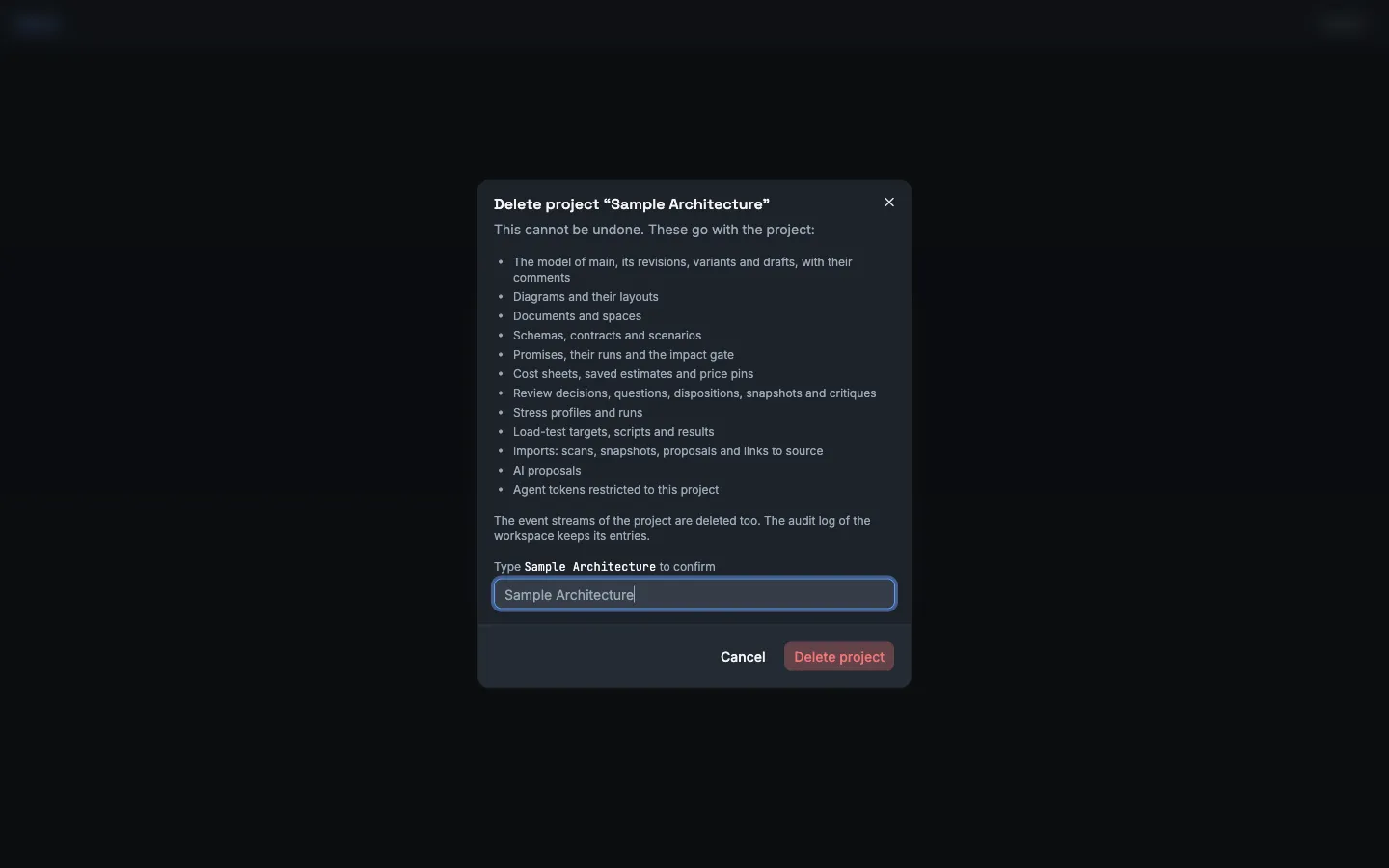
The button stays off until the typed name matches. The delete cannot be reversed. Vellum deletes the model with its revisions, variants and drafts, the diagrams, the documents and spaces, the schemas and scenarios, the promises and their runs, the cost data, the review data, the stress profiles and runs, the load-test data, the scans, the AI proposals and the agent tokens of the project, with their event streams. Make a backup first if you can need the project again: see Back up and restore.
The request is DELETE /api/projects/{projectId}. The status is 204.
curl -X DELETE "http://localhost:8080/api/projects/<project-id>" \ -b vellum.cookiesDelete a workspace
Section titled “Delete a workspace”You need the owner role.
- Open the workspace settings.
- Select General.
- Below Danger area, select Delete workspace….
- Read the list of what goes.
- Type the name of the workspace and select Delete workspace.
Vellum deletes each project of the workspace as a project delete does. Then it deletes the members, the open invitations, the settings, the stored credentials, the price book, the agent tokens, the AI usage records and the cached repository files. The delete cannot be reversed.
The audit log keeps its entries, because it is append-only. Vellum writes the entry workspace.deleted to the audit log of the instance. The instance administrator sees it.
The request is DELETE /api/workspaces/{id}. The status is 204. A member who is not an owner gets 403.
curl -X DELETE "http://localhost:8080/api/workspaces/<workspace-id>" \ -b vellum.cookies