Trace a scenario
This guide shows you how to play one behaviour of your system on the canvas. You need the editor role to add a contract and to save a scenario. A viewer can play a saved scenario.
A trace replays what you declared. It does not call or observe your system. See A trace is declared behaviour.
Declare the contracts
Section titled “Declare the contracts”A scenario can reference only contracts that exist in the model. A contract names elements, so add the elements first. See Model a system.
- Open Contracts in the left toolbar.
- In Operations, select Add for each call a service accepts. Give Name, Offered by, Transport, Timeout (ms), Attempts and Backoff (ms). Select Add operation.
- In Channels, select Add for each topic, queue or exchange. Give Name and Kind. Select Add channel.
- In Subscriptions, select Add for each consumer of a channel. Give Channel, Consumer, Attempts and Backoff (ms).
- Select a Dead-letter channel for the subscription. Without one, a message that fails every attempt is lost. Select Add subscription.
- When a producer publishes to an exchange or a topic and a consumer reads a queue, select Bind to a channel below the exchange or the topic. The button reads Add binding when the channel has a binding. In Route to, select the queue or the exchange to route to. Give Routing key (optional) only when the broker uses one. Select Add binding.
To change an operation, a channel or a subscription, select the pencil button on its row. Change the fields and select Save operation, Save channel or Save subscription. Select Cancel to keep the old values.
Attempts is a number from 1 to 10. A binding starts at an exchange or a topic and ends at a queue or an exchange.
To change a binding, point at its row below the exchange or the topic and select the pencil. Change Route to or Routing key (optional) and select Save binding. The binding keeps its source channel.
A scenario then publishes to the exchange, as the code does. The trace shows each binding that the message follows and each binding that it does not follow.
Vellum refuses to remove an element, a channel or a schema that a contract uses.
Write the scenario
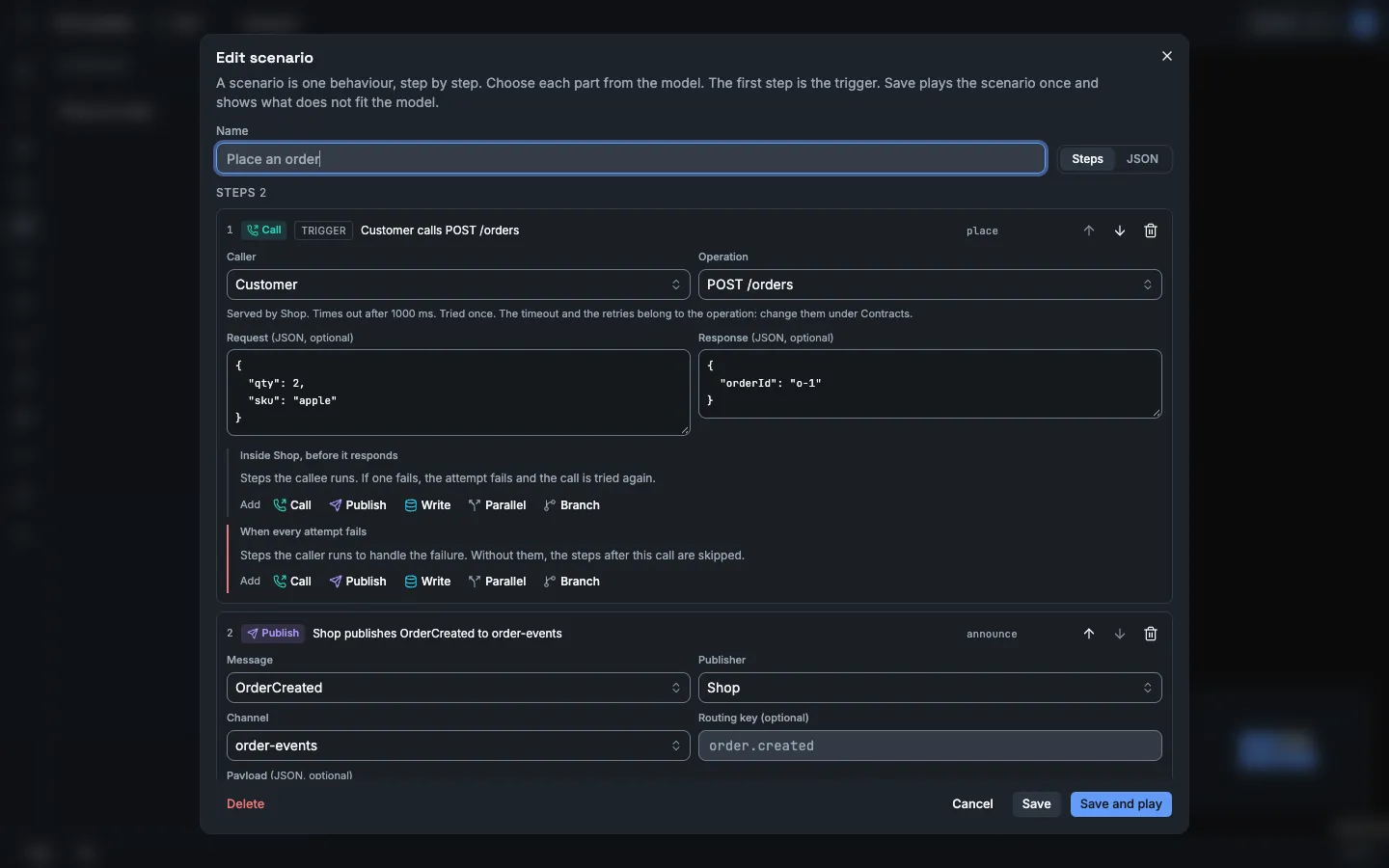
Section titled “Write the scenario”The scenario editor builds the scenario from the parts of the model. You select each part by its name. You do not type an ID.
- Open Scenarios in the left toolbar.
- Select New.
- Give the scenario a name in Name.
- Below Steps, select the type of the first step. The first step is the trigger of the scenario. The editor marks it Trigger.
- Fill in the fields of the step. A field with an arrow is a list of the parts of the model. Type part of a name to filter the list. Use the arrow keys and Enter, or select an entry with the pointer.
- Add the next steps in the order that they occur. To change the order, use the up and down arrows of a step.
- Select Save and play.
Step types
Section titled “Step types”| Type | Fields | Step lists in the step |
|---|---|---|
| Call | Caller (an element), Operation, Request, Response | Inside the callee, before it responds: the steps that the callee runs. When every attempt fails: the steps that the caller runs to handle the failure. |
| Publish | Message, Publisher, Channel, Routing key (optional), Payload, Headers | Consumers lists each subscription that the channel and its bindings reach. Select Add steps to give the steps that this consumer runs. |
| Write | Writer (an element), Data store, Dataset, Change | None. |
| Parallel | None | One list for each branch. Select Add branch for one more branch. All branches start at the same time. |
| Branch | When step, Is (Succeeded, Failed or Skipped) | Then runs when the step has that outcome. Else runs when it does not. |
- Request, Response, Payload and Change are JSON. Leave a field empty for no value. When the operation or the message has a schema, the editor shows its name above the field. The field shows an error when the text is not valid JSON. You cannot save while a field has an error.
- When you select a Message, the editor sets Publisher to the producer of the message. You can select a different publisher.
- When step lists only the steps that end before the branch starts. It does not list a step of another parallel branch or a step of a consumer.
- The timeout and the retries of a call belong to the operation. The retries and the dead-letter channel of a delivery belong to the subscription. The editor shows these values below the step. Change them in Contracts.
- Each step has an ID, for example
call-1. A branch and an expected result refer to a step by its ID. To change the ID, edit it at the top right of the step and press Enter. The editor also changes each branch and each expected result that uses the old ID.
Failures to inject
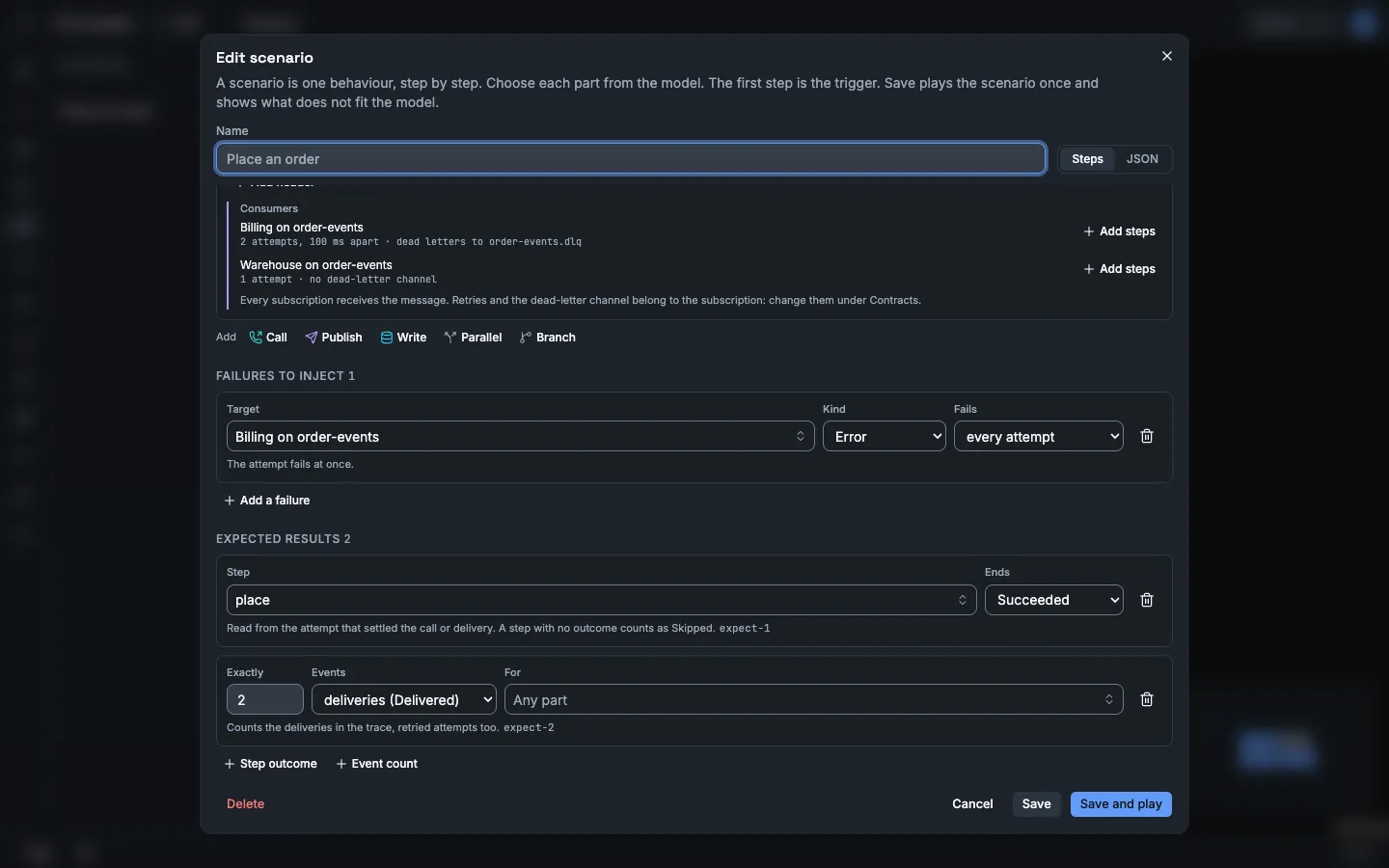
Section titled “Failures to inject”- Below Failures to inject, select Add a failure.
- In Target, select an operation, a channel, a subscription or an element. A failure on an element makes everything that the element serves fail.
- In Kind, select Error, Timeout or Outage. Timeout applies only to an operation that has a timeout.
- In Fails, select the first and give a number of attempts, or select every attempt.
One target takes one failure. The list of targets does not show a target that already has a failure.
Expected results
Section titled “Expected results”- Select Step outcome to state the outcome of one step: Succeeded, Failed or Skipped.
- Select Event count to state how many events of one kind the trace has. In For, select a part to count only the events of that part. Any part counts all of them. The count includes retried attempts.
Save and check
Section titled “Save and check”Save saves the scenario and then plays it one time to check it. Save and play does the same, and then opens the trace.
The server checks each reference, payload and schema. When it finds a problem, the editor stays open. It shows each problem at the top of the step that has the problem, and the other problems above the steps. The scenario is saved, but it does not play until you correct the problems.
The JSON view
Section titled “The JSON view”Select JSON to see the document that the server stores. The steps refer to the parts of the model by ID. A change in the JSON view shows in Steps. When the JSON is not valid, the editor shows the error and you cannot go back to Steps until you correct it. The scenario format lists every field and every limit.
To play a saved scenario, select the play button on its row in Scenarios. To change it, select the edit button on its row.
When a draft is open, the scenario plays against the contracts of the draft.
Play it
Section titled “Play it”The dock at the bottom of the canvas controls playback.
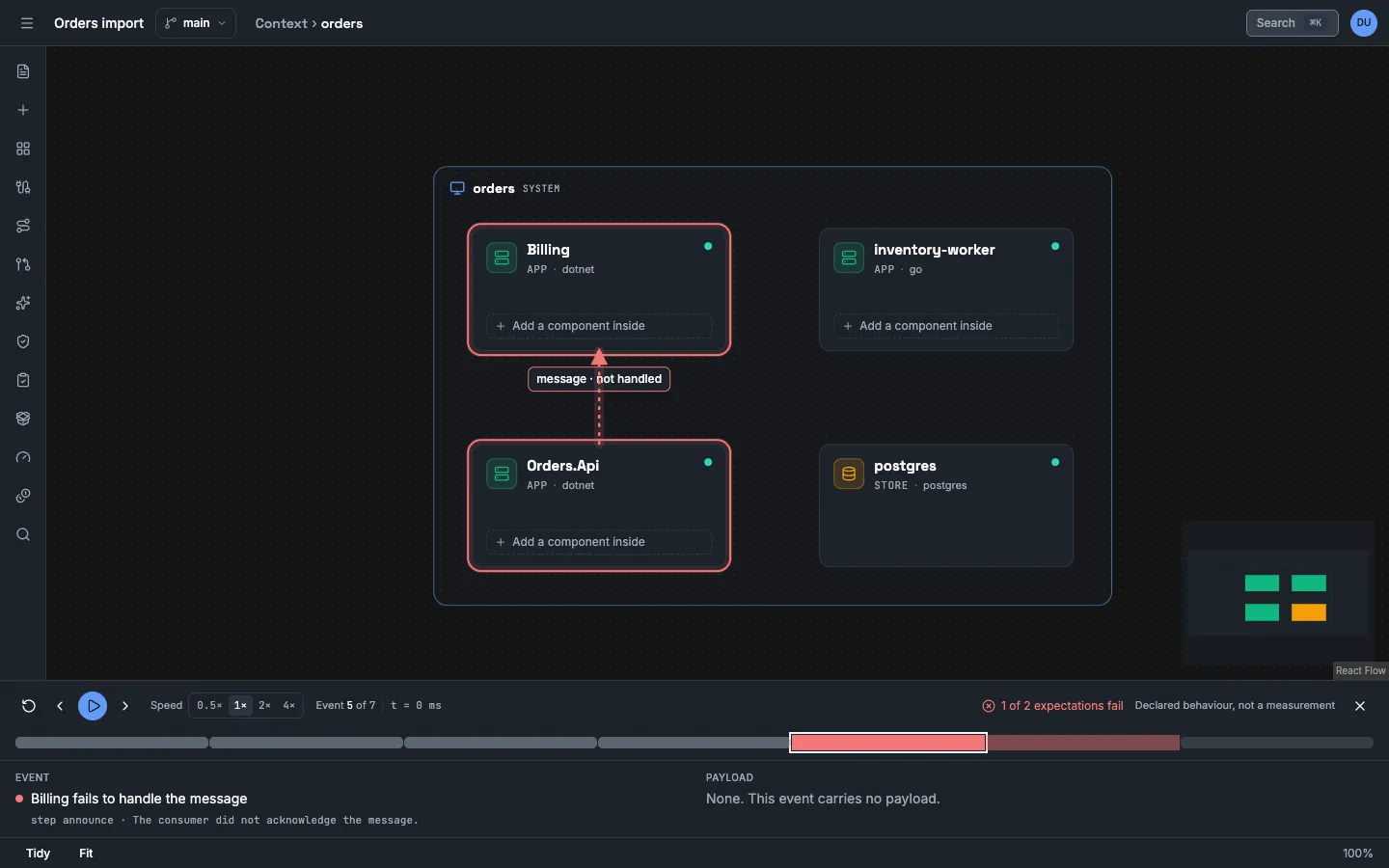
- Play moves through the events in order. Pause stops. Select a speed: 0.5×, 1×, 2× or 4×.
- Previous event and Next event move one event. Restart goes back to the moment before the first event. Hover over a button to see its name.
- The counter shows Event n of total and the virtual time.
- Select a tick on the timeline to go to that event.
- Below the timeline, Event states the event in words. Payload shows its payload.
- The canvas shows a ring on the elements that take part, and an edge between them.
- Close trace closes the dock.
Each colour has one meaning: teal is a request, violet is a message, cyan is a data write, amber is a retry, red is a failure. Grey is a branch, a skipped step or a binding that the message does not follow. On the timeline, only the event in focus, the failures and the retries have their colour. The other ticks are grey. A played tick is stronger than a tick still to come. A failure tick is also taller, and a retry tick is thinner. With reduced motion on, the moving dot is hidden and nothing else changes.
The dock always shows the line “Declared behaviour, not a measurement”.
Read the result
Section titled “Read the result”Select the expectation count in the dock to see each expected result and why it holds or fails.
If the scenario has an invalid reference or payload, the dock says “This scenario cannot play”, lists each problem and plays nothing. The editor shows the same problems at the steps when you save.
Inject a failure
Section titled “Inject a failure”Add the failure in Failures to inject of the scenario editor. See Failures to inject. Then select Save and play.
Limits
Section titled “Limits”- A message that moves to a dead-letter channel follows the bindings of that channel. The trace does not deliver it to the consumers of the dead-letter channel.
- The trace check does not check the kind of an element. For example, it accepts a write step whose
storeis an actor. - The trace check does not check that the element that publishes a message is the declared producer of that message.
- The scenario format gives the limits of one playback.