Write project documents
This guide shows you how to write a text document in a project and how to link it to the model. You need the editor role.
A document is text that people read. It is not the model. Vellum does not read a document to build the model, to review it or to make a bundle. The SDD that an agent gets comes from the model: see Export for an agent.
Create a document
Section titled “Create a document”- Select Create new in the left toolbar.
- Select New Doc.
- Select Blank, or a template: PRD or SDD.
- Enter a Document title.
- Select Create.
Vellum opens the document in the editor. A template gives the document its first text. Vellum stores the text with the new document, so the document keeps it when you open it again.
To write a document about one element, select the element on the canvas. In the detail panel, below Docs, select New doc for this element, enter a Title and select Create. The document is attached to the element.
A document cannot be an ADR. An ADR is a decision of the review: select New Decision (ADR) in Create new, or see Record a decision. The API refuses a document of type adr with 400. When Vellum upgrades its database, a document of type adr gets the type note. Its title and text stay.
Open a document
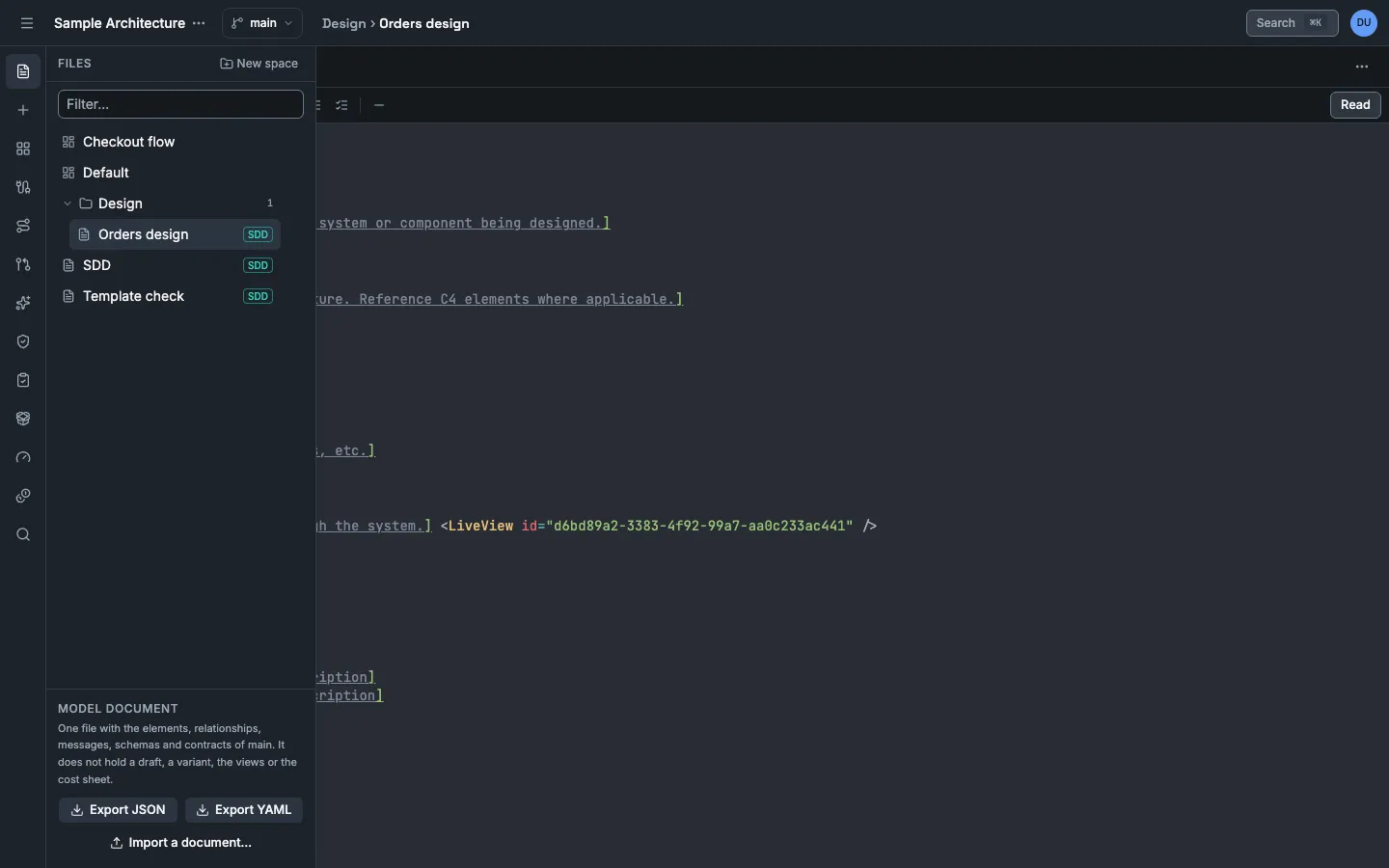
Section titled “Open a document”- Select Project files in the left toolbar.
- Enter part of the title to filter the list. This step is optional.
- Select the document.
The list shows the diagrams, then the spaces with their documents, then the documents that are in no space. With no file it shows No files yet.
The detail panel of an element lists below Docs the documents that are attached to the element. Select one to open it.
Rename, move, attach or delete a document
Section titled “Rename, move, attach or delete a document”You need the editor role.
- Select Project files in the left toolbar.
- Point to the document and select its ⋯ button. The same menu is at the right of the title in the open document.
- Select an action.
| Action | Result |
|---|---|
| Rename | Enter the new Title and select Rename. You can also edit the title at the top of the open document: Enter saves, Escape goes back. |
| Move to space… | Select a space, or No space (top level), and select Move. |
| Attach to element… | Select an element, or No element, and select Attach. The document shows below Docs in the detail panel of that element. |
| Delete… | Select Delete document. The document and its text are deleted. |
To move a document into a space, you can also drag it onto the space. Drag it onto the list below the spaces to take it out of its space.
Group documents in spaces
Section titled “Group documents in spaces”A space is a folder of documents. A space holds no other space. You need the editor role.
- Select Project files in the left toolbar.
- Select New space, enter a Name and select Create.
- To rename or delete a space, point to it and select its ⋯ button, then Rename or Delete….
When you delete a space, its documents move to the top level. Vellum deletes no document with the space.
Edit the text
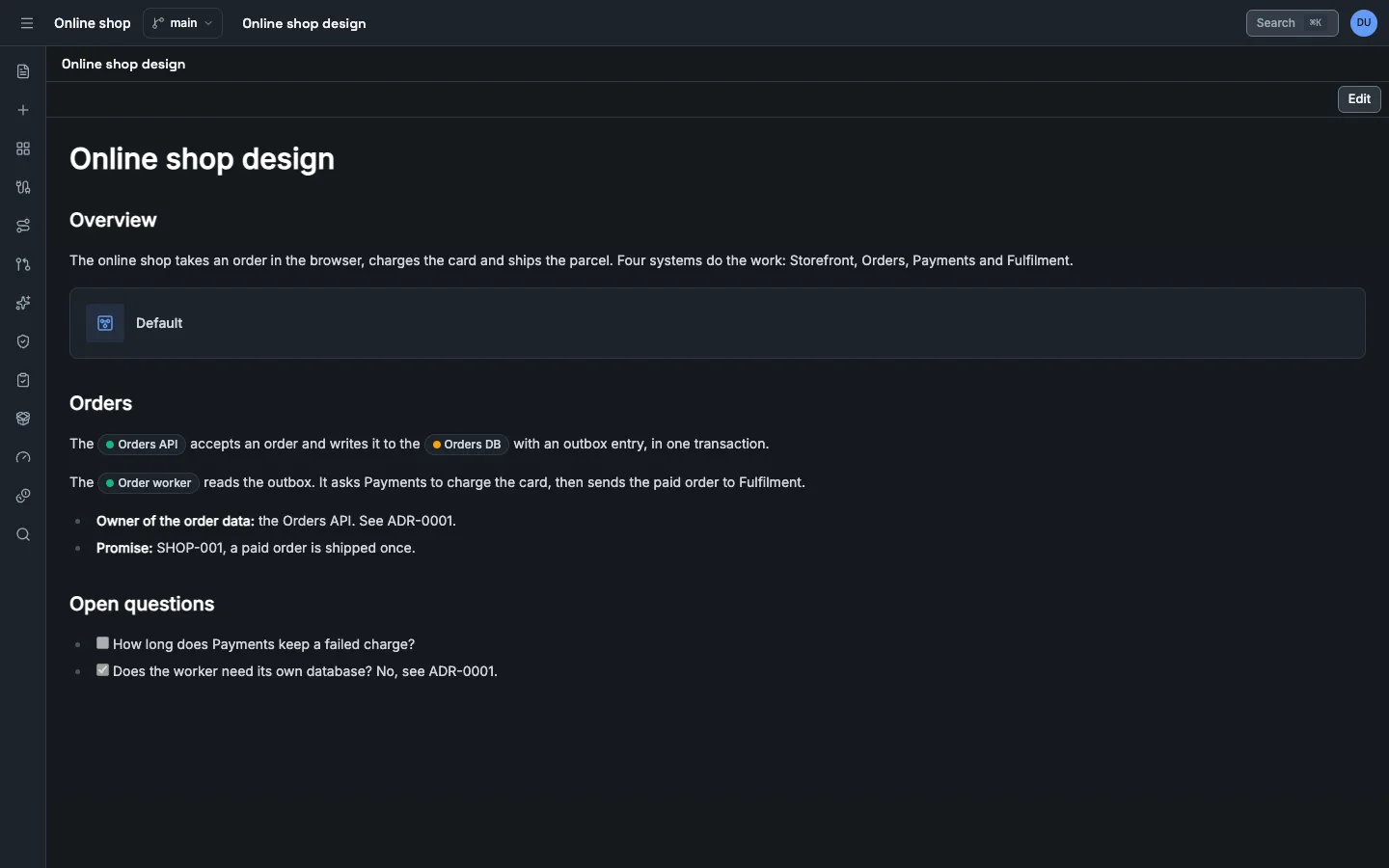
Section titled “Edit the text”The editor has two modes. Edit shows the Markdown source. Read shows the result.
- Type Markdown in the editor.
- Use the toolbar for Bold, Italic, Heading 1, Heading 2, Heading 3, Link, Code, Bullet list, Numbered list, Task list and Horizontal rule.
- Select Read to see the result.
- Select Edit to go back to the source.
Vellum saves the document 300 ms after your last change. There is no save button.
Link to an element
Section titled “Link to an element”An element link shows the name of an element. A reader selects it to open the element in the detail panel.
- Get the ID of the element. The app does not show IDs. Call
GET /api/projects/{projectId}/elementsand readid. - Type the tag in the text.
The <ElementLink id="c4a8f6de-58a3-4b55-93a3-1b8c0b6c5f01"/> stores each event before it sends it.The link shows the name that the element has now. When you rename the element, the document shows the new name. When the element does not exist, the link shows Element removed.
Link to a diagram
Section titled “Link to a diagram”A live view is a card with the name of a diagram. A reader selects it to close the document and open the diagram.
- Get the ID of the diagram. Call
GET /api/projects/{projectId}/viewsand readid. - Type the tag on a line of its own.
<LiveView id="0f6d7a3b-2c1e-4b8a-9d7f-5e4c3b2a1f00"/>When the diagram was deleted, the card shows This diagram was deleted. The text of the document stays as it is. See Model a system.
Know what the text can contain
Section titled “Know what the text can contain”Vellum reads the text with an MDX parser and builds the page from the parsed tree. It generates no program from the text and evaluates nothing. A document is text that an editor, an import or an AI wrote, so it is shown as a document and never run.
The Read mode shows these parts.
| Part | Support |
|---|---|
| Markdown | Headings, paragraphs, emphasis, links, images, lists, block quotes, inline code, code blocks and horizontal rules. |
| GitHub Flavored Markdown | Tables, task lists, strikethrough, footnotes and plain URLs as links. |
| Code blocks | A block with a language name has syntax colours. |
| The two tags of Vellum | <ElementLink id="..."/> and <LiveView id="..."/>. The id must be plain text in quotation marks. |
| HTML tags | A tag in lower case, for example <kbd>, <sub>, <sup> or <br/>, with attributes that are plain text. |
The Read mode leaves these parts out. It shows no message for them.
| Part | Example |
|---|---|
| An expression in braces | {1 + 1}, {fetch("https://example.com")} |
An import or an export line |
import X from "y" |
| An attribute with an expression as its value | id={someId} |
| An event handler attribute | onclick="..." |
| A tag that loads or runs something, with its content | script, style, iframe, object, embed, link, meta, base, form, frame, frameset, template, svg, math |
A component tag that is not ElementLink or LiveView, with its content |
<Chart/> |
A link or an image address with another scheme than http, https or mailto |
javascript:..., data:... |
| A style value that loads something | url(...) |
| A comment in braces | {/* note */} |
A relative address, an address that starts with / and an address that starts with # are shown.
The parser still reads the text as MDX. So these rules apply in the Edit mode.
- To show a brace or a
<as text, put it in inline code or in a code block, or write\{or\<. - Close each tag. Write
<br/>, not<br>. - Do not write an HTML comment (
<!-- note -->). The parser refuses it. Write{/* note */}. - Text that the parser cannot read gives MDX render error and the reason in the Read mode. A tag that is not closed, a brace that is not closed and an HTML comment are frequent causes. Go to Edit and correct the text.
The page of Vellum loads images from its own origin only. An image with an address on another host has a place in the page, and the browser does not load it. See Security model.
Manage documents through the API
Section titled “Manage documents through the API”The app does each of these tasks. The API does them too. The curl examples use the session cookie of a signed-in person in the file vellum.cookies. Use the HTTP API shows how to sign in. An agent token cannot make these calls: these endpoints are not open to agent tokens and answer 403.
| Task | Request |
|---|---|
| List the documents | GET /api/projects/{projectId}/docs with the optional filters spaceId, elementId, draftId, type and embedsViewId |
| Create a document | POST /api/projects/{projectId}/docs with id, title and the optional content, spaceId, elementId, draftId and type |
| Read a document | GET /api/projects/{projectId}/docs/{docId} |
| Change the title, the text, the space or the element | PATCH /api/projects/{projectId}/docs/{docId} |
| Delete a document | DELETE /api/projects/{projectId}/docs/{docId} |
| Create a space | POST /api/projects/{projectId}/spaces with id and name |
| List the spaces | GET /api/projects/{projectId}/spaces |
| Rename a space | PATCH /api/projects/{projectId}/spaces/{spaceId} |
| Delete a space | DELETE /api/projects/{projectId}/spaces/{spaceId} |
This request renames a document and puts it in a space. A null title or text keeps the value. spaceId and elementId change only when setSpaceId or setElementId is true.
curl -X PATCH "http://localhost:8080/api/projects/<project-id>/docs/<doc-id>" \ -b vellum.cookies \ -H "Content-Type: application/json" \ -d '{"title":"Outbox design","content":null,"spaceId":"<space-id>","elementId":null,"setSpaceId":true,"setElementId":false}'